
Step 1: Open your Google Business Profile
Sign in to the Google account that manages your business, then search for your business name on Google. You will see your profile with the option to manage it.
Step 2: Find "Ask for reviews"
In your Business Profile, choose the option to ask for reviews or share a review form. Google shows a short link you can copy. This link opens the review form for your business directly.
Step 3: Copy and test the link
Open the link in a private browser window or on your phone to confirm it lands on the review form for the correct location. If you have multiple locations, use a separate link for each.
Step 4: Turn the link into a QR code
Paste the link into any QR code generator and download the result. Use a dynamic QR code where possible so you can change the destination later without reprinting.
Step 5: Put it on a physical card
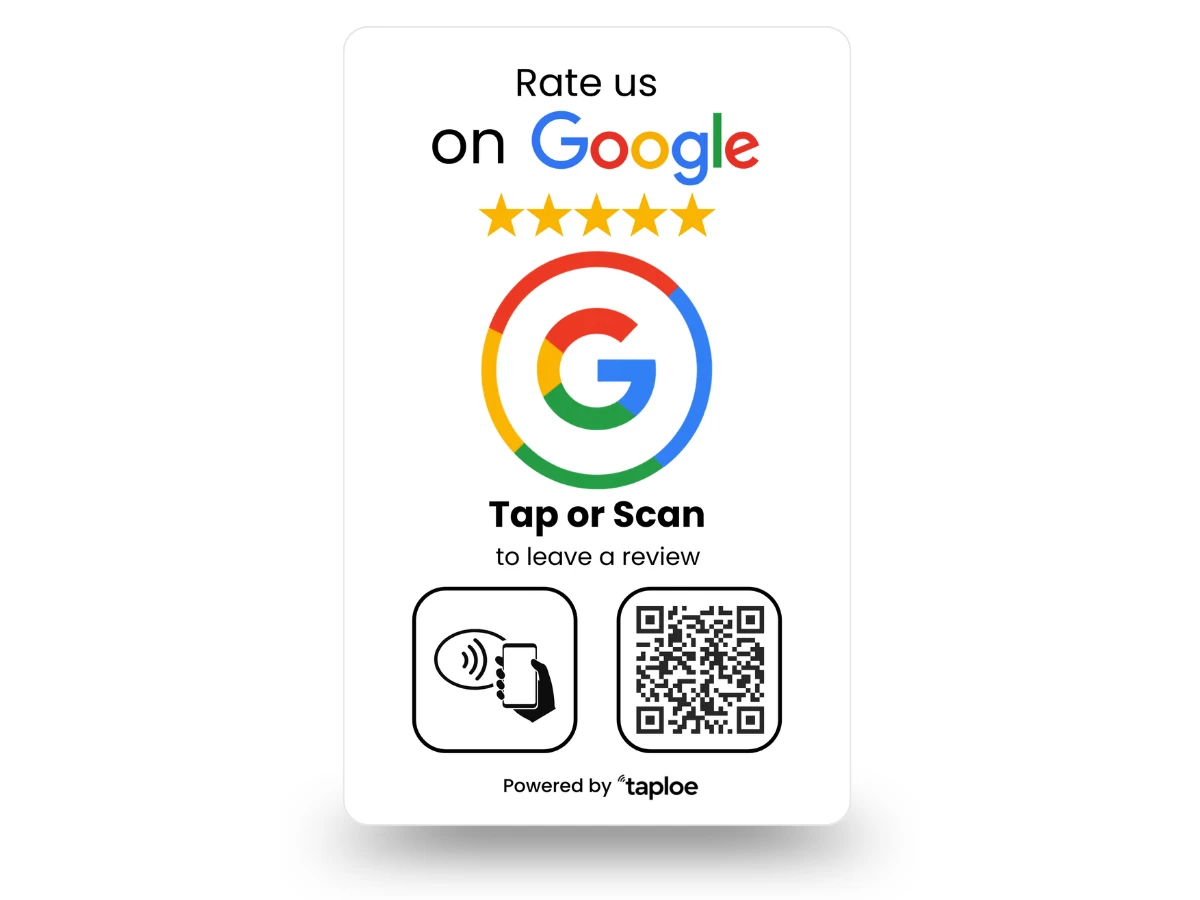
Print the QR code on a card, sign, receipt or table tent. Even better, use a card with both a QR code and an NFC chip. Customers with NFC phones simply tap, and others scan. That is exactly what a Taploe Google review card does.
Tips for better results
- Add a short line such as "Enjoyed your visit? Leave us a Google review."
- Make the QR code large enough to scan from a normal distance.
- Place it at eye level at the moment of highest satisfaction.
- Do not offer discounts or gifts in exchange for reviews. It violates Google policy.
More ideas in our list of ways to get more Google reviews.